How I Built My GitHub Profile README
Introduction
Your GitHub profile is often the first thing another developer sees when they stumble upon your work. It's your digital handshake — a split-second signal of who you are, what you build, and how seriously you take your craft. For a long time, mine was just the default empty page with a handful of public repos. That changed once I discovered GitHub's special profile README feature.
In this post, I'll walk through exactly how I built my own profile README for Shavrka — the decisions I made, the tools I used, and the patterns that made it worth the effort. Whether you're starting from scratch or want to level up an existing profile, this should give you something concrete to work with.
What Is a GitHub Profile README?
When you create a repository named exactly after your GitHub username (in my case, Shavrka/Shavrka), and add a README.md to it, GitHub automatically displays that file at the top of your profile page. It's just Markdown — but because it lives right on your profile, it becomes a living showcase of your developer identity.
The feature is deceptively simple. A plain Markdown file. But what you do with it is entirely up to you.
Core Concepts
1. Structure First, Style Second
- Who I am — a quick summary of my background and focus areas
- What I build — tech stack, types of projects
- How I work — tools, editor setup, workflow preferences
- Where to find me — links to portfolio, social, and contact
This gave me a clear hierarchy. The introduction anchors the page, the tech stack and projects provide substance, and the links close the loop.
2. Markdown Has More Power Than You Think
GitHub's Markdown renderer supports a reasonable subset of HTML inline, which opens up alignment tricks, image sizing, and layout options that pure Markdown doesn't allow. For example, centering a header and avatar:
<div align="center">
  <img src="https://github.com/Shavrka.png" width="100" style="border-radius: 50%;" />
  <h1>Hey, I'm Shavrka 👋</h1>
  <p>Independent developer building tools, APIs, and modern web apps.</p>
</div>
This immediately gives the profile a polished look without any external tools.
3. Badges Are Useful — If You're Selective
The ecosystem of profile badges (shields.io, skill-icons, etc.) is enormous. It's tempting to list every technology you've ever touched. Resist that.
I picked badges that represent tools I use regularly and confidently. For the tech stack, I used skill-icons:
One line. Clean, visual, and instantly readable. No walls of text needed.
Practical Examples
Dynamic Stats with GitHub Readme Stats
One of the most popular additions is github-readme-stats. It generates SVG cards that pull live data from the GitHub API.
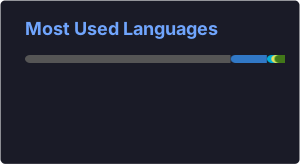
I also added a top languages card, but I use it carefully — top languages by repository size doesn't always reflect your actual skill set. I filtered a few repos to avoid skewing the results:
GitHub Streak Stats
The streak counter is a motivating addition that shows your current and longest contribution streak:
[](https://git.io/streak-stats)This uses DenverCoder1's streak stats — a solid open-source project that's been reliable for years.
Animated Wave Header
A subtle but polished touch is using an SVG wave animation at the top of the README. You can generate these with tools like capsule-render:
I used a waving header with a gradient that fits the overall dark-themed aesthetic.
Pinned Projects Section
Instead of relying solely on GitHub's default pinned repos, I wrote a manual projects section with context:
## 🚀 Featured Projects

| Project | Description | Stack |
|--------|-------------|-------|
| [shavrka.studio](https://shavrka.studio) | Personal portfolio & dev blog | Next.js, Tailwind, MDX |
| [devtool-cli](https://github.com/Shavrka/devtool-cli) | CLI automation toolkit | Node.js, Commander.js |
| [api-starter](https://github.com/Shavrka/api-starter) | Production REST API boilerplate | Express, TypeScript, Postgres |
Tables in Markdown are underrated for this kind of structured content.
Tips and Best Practices
Keep It Scannable
Other developers are busy. They'll skim your profile in under 30 seconds. Use short sentences, bullet points, and visual hierarchy to make the most important things jump out immediately. Avoid long paragraphs on your profile — save those for blog posts.
Match Your Theme Consistently
Decide on a colour theme early and stick with it. I use Tokyo Night across my stats cards, streak widget, and capsule-render header. Consistency signals attention to detail — which is exactly the impression you want to make.
Add a "Currently Working On" Section
## 🔭 Currently Working On

- Building **shavrka.studio** — my personal portfolio with a dev blog
- Experimenting with **Three.js** for 3D tech stack visualisations
- Writing about **TypeScript patterns** and **Node.js architecture**
It makes your profile feel alive rather than static. Update it every month or two.
Use Emoji Sparingly
A handful of relevant emoji (🚀, 🛠️, 📦) adds personality without cluttering the page. More than 10–15 across the whole document starts to feel noisy.
Test in Both Light and Dark Mode
GitHub users can have either theme active. Check that your stats cards, images, and colour choices hold up in both modes. Using theme=dark on cards works, but tokyonight with hide_border=true tends to degrade gracefully in light mode too.
Don't Over-Engineer It
I've seen profile READMEs with embedded Spotify now-playing widgets, custom SVG animations, and real-time coding activity charts. These are impressive engineering exercises — but they also slow down the page and can break when third-party services go down. I kept external dependencies to three well-maintained services.
The File Structure I Settled On
- Capsule-render wave header — visual hook
- Centered intro — name, tagline, and role
- Social links — portfolio, LinkedIn, email (as small badges)
- About section — 3–4 bullet points about me
- Tech stack — skill-icons grid
- GitHub stats — two cards side by side using an HTML table
- Streak counter — centered below stats
- Featured projects — Markdown table
- Currently working on — bullet list
- Capsule-render wave footer — visual closer
That's roughly 80 lines of Markdown total — enough to feel complete without being overwhelming.
Conclusion
Building a strong GitHub profile README isn't about piling in every widget available. It's about telling a clear, honest story about who you are as a developer — quickly and visually. The tools are all free, the setup takes a few hours, and the result compounds over time as more people visit your profile.
If I were starting over today, I'd spend 80% of the time on structure and copy, and 20% on visual decoration. The words matter more than the badges. Once the story is right, the styling is just polish.
Start with the basics, ship it, and iterate as your profile evolves alongside your work.